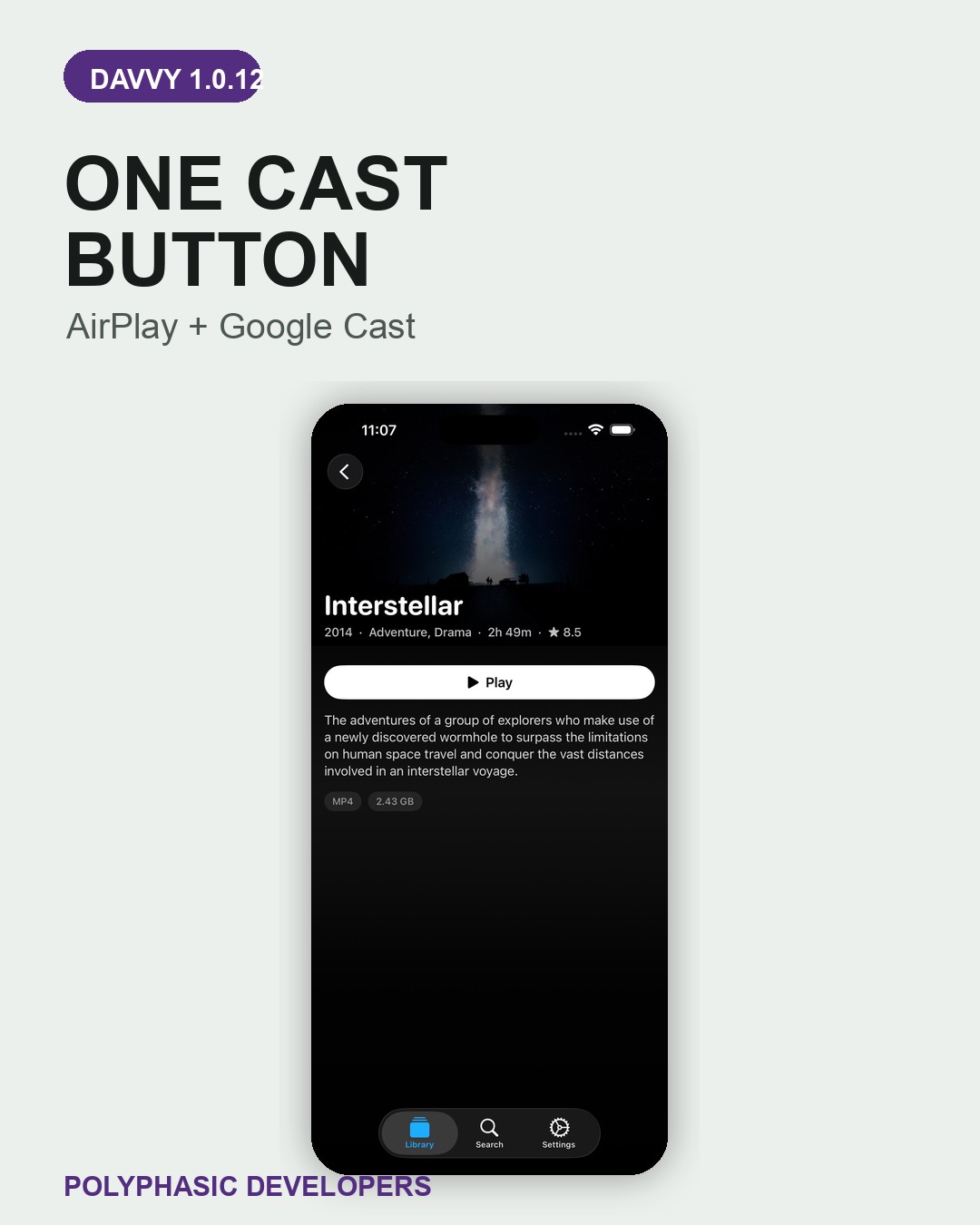
Release summary: Davvy 1.0.12 puts AirPlay and Google Cast behind one Cast button. AirPlay also lets you choose an Apple TV while a file that needs converting on your iPhone gets ready. The update is available from the App Store.
The useful change is not another casting name. It is having one place to start. Open the player, tap Cast and then make the only choice that matters: the standard supported by the receiving screen.
That choice remains explicit. AirPlay and Google Cast have not been blurred into a mystery option. Davvy shows both under one button, with the relevant receiving devices under each route.
Choose the route your receiving screen supports
The Cast menu separates the choices by the receiving device:
- AirPlay: choose this for Apple TV or an AirPlay TV.
- Google Cast: choose this for Chromecast, Google TV or a Cast TV.
Start the video, tap Cast and select the appropriate route. If you have different receiving devices in different rooms, the player still begins with the same button; the second choice changes to match the screen.
Get one video playing in Davvy first
Davvy plays films and television from your own WebDAV server. The casting update changes how you choose the receiving screen; it does not create a server or supply a film library.
If Davvy is new to you, get one video playing on the iPhone before trying the Cast button. Follow the server setup guide first, then return to the player for the casting controls.
Once the video opens in the player, the new flow is short: tap Cast, choose AirPlay or Google Cast, and then select the receiving device shown under that route.
Pick an Apple TV while converted video gets ready
Some files need converting on the iPhone before the AirPlay stream is ready. Davvy 1.0.12 lets you select the Apple TV straight away while that preparation continues.
Choose AirPlay and pick the Apple TV when asked. Davvy can then keep getting the stream ready with the destination already selected, rather than asking you to return to that choice afterwards.
This part of the update applies to AirPlay files that need converting on the iPhone. The Cast button remains the starting point; the early destination choice removes a wait inside that particular route.
How to update Davvy
- Open Davvy on the App Store.
- Choose Update if it appears. If the button says Open, the current version may already be installed.
- Open Davvy and start a video from your library.
- Tap the Cast button in the player, then choose AirPlay or Google Cast for the receiving device you want to use.
Davvy 1.0.12 follows version 1.0.11, which added an iPhone Duo layout. New to the app? Explore Davvy or use the Jellyfin and WebDAV setup guide to prepare your own video library.
Davvy 1.0.12 questions
What changed in Davvy 1.0.12?
The player now has one Cast button for choosing AirPlay or Google Cast. AirPlay also lets you choose an Apple TV while a file that needs converting on the iPhone gets ready.
Which devices can I choose from the Cast button?
Choose AirPlay for Apple TV and AirPlay TVs. Choose Google Cast for Chromecast, Google TV and Cast TVs.
Where can I get Davvy 1.0.12?
Get the update from the App Store. Automatic updates may already have installed it.