How to connect Navidrome to your iPhone with Tunode
Install Tunode, enter your Navidrome server's base address and your normal Navidrome username and password, then tap Connect. Once the library loads, choose an album or track and press play.
Published 23 September 20267 minute readTunode 1.1.1
Quick answer: Tunode needs the base URL for your Navidrome server, not the address of a separate login screen. Enter that URL with your Navidrome username and password. Tunode adds the OpenSubsonic API path automatically.
Before you start
A working Navidrome or compatible OpenSubsonic server containing your music.
An iPhone or iPad running iOS or iPadOS 17 or later.
Your server's base address, plus a Navidrome username and password.
Access to the same local network as the server, or a secure remote route to it.
Tunode is the iPhone client in this walkthrough. It connects to your server directly and does not provide music or server hosting.
Use the server URL, not a web-login URL
Enter the base address that reaches Navidrome. For a server on your home network, that might look like http://192.168.1.20:4533. For a server available through a secure public address, it might look like https://music.example.com.
Do not add /rest. Tunode appends that OpenSubsonic API path itself. Do not paste a saved browser login page with extra paths or query parameters either.
Tunode treats a bare local-network host as HTTP and other bare hosts as HTTPS. Writing the full address yourself is clearer, especially when a custom port is involved.
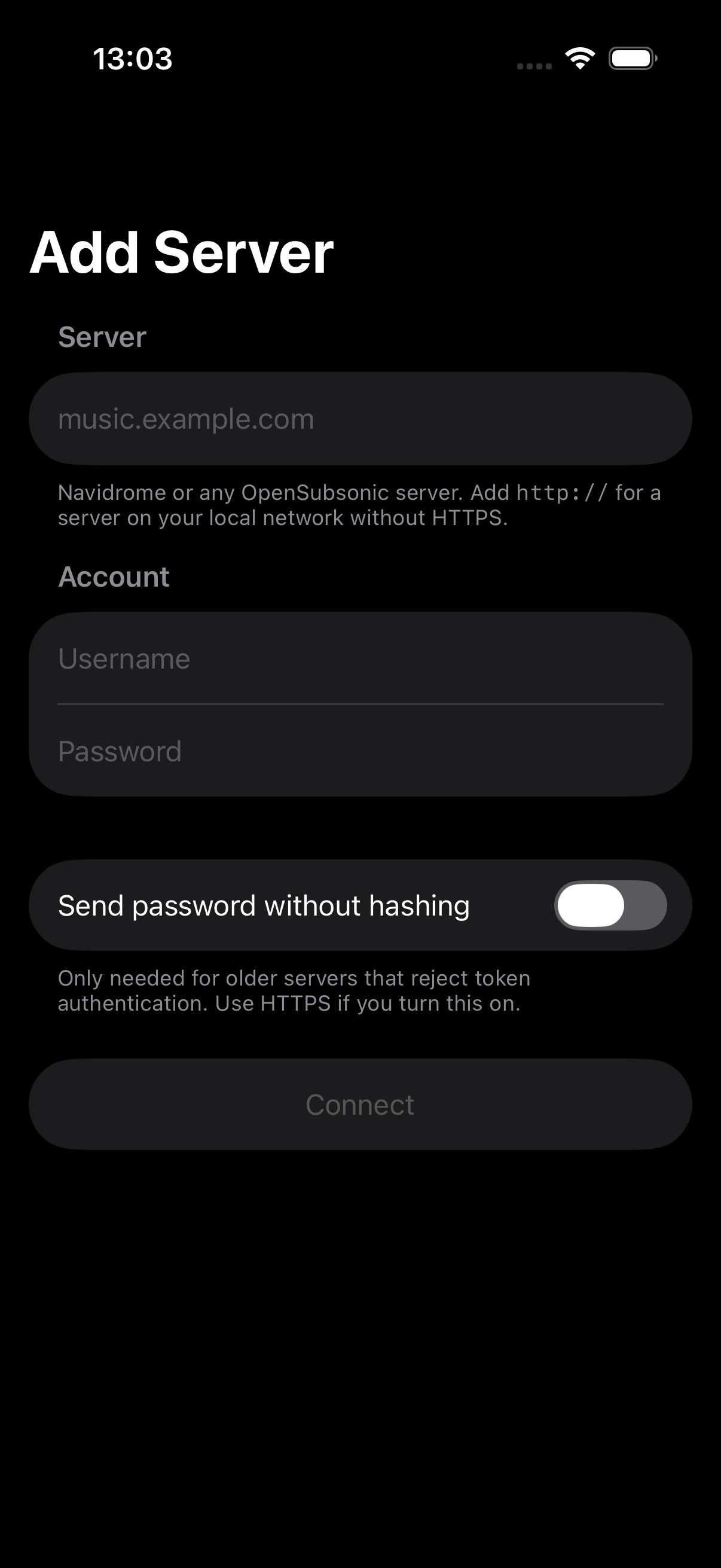
Tunode's Add Server screen. The screenshot comes from the tested 1.1.1 release build and contains no real credentials.
Connect Tunode to Navidrome
Open Tunode and choose Add Server.
Enter the base server address. Include http:// or https:// and any non-standard port.
Enter your Navidrome username and password. These are the account details you use for that server.
Leave Send password without hashing off. It is only for older servers that reject token authentication. If you genuinely need it, use HTTPS because the password is then sent without OpenSubsonic's token hash.
Tap Connect. If the address points to a server on your local network, iOS may ask for permission at this point.
Allow local-network access on iPhone
Apple shows the local-network permission when an app first tries to reach another device on the same network. Tap Allow if your Navidrome address is a private LAN address such as 192.168.x.x, 10.x.x.x or a local hostname.
If you tapped Don't Allow, open iPhone Settings, find Tunode and enable Local Network. Without that permission, a server can work in Safari and still appear unreachable in Tunode.
Play the first track
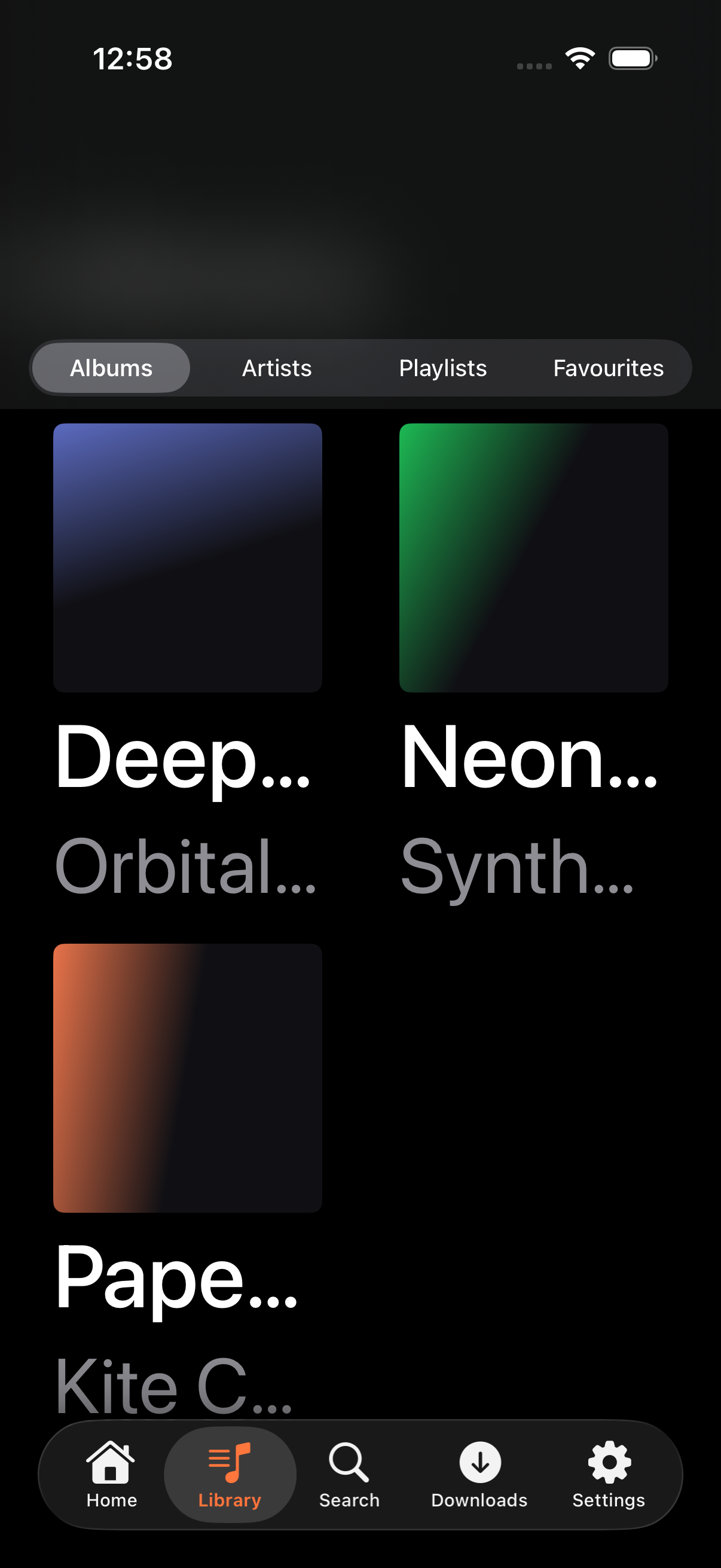
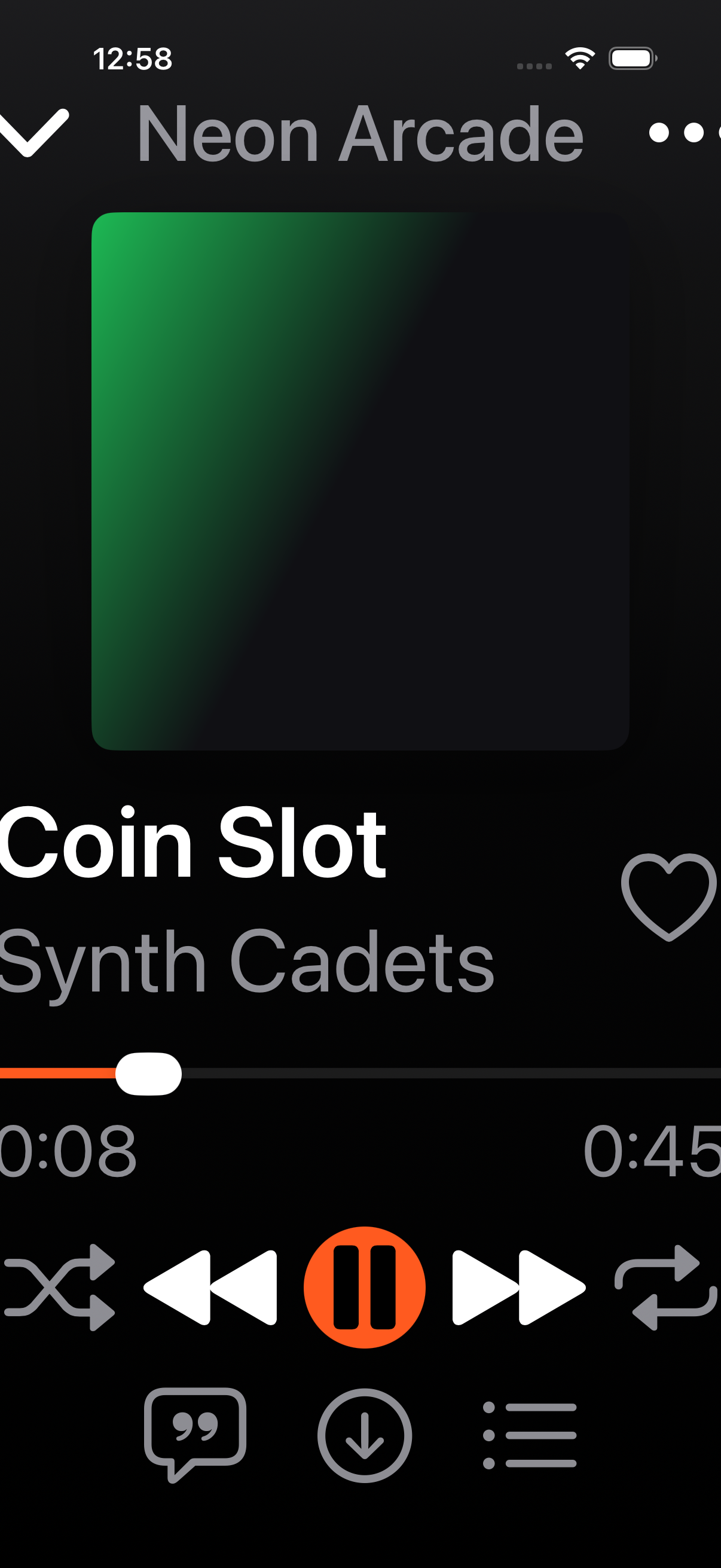
A successful connection opens the library. Browse Albums, Artists, Playlists or Favourites, open a release and tap a track. The system Now Playing screen should show the track title, artist, progress and playback controls.
The library screen in the tested Tunode 1.1.1 release build. The album names and artwork are test fixtures.First playback in the 1.1.1 release test tour. The track and artwork are fixture data, not a user's library.
Once playback works, see what else Tunode supports, including downloads, synced lyrics, selectable streaming quality and CarPlay. All features are available in the free app. It contains advertising, with an optional one-time Remove Ads purchase rather than a subscription.
Using Navidrome away from home
A private LAN address only works while the iPhone can reach that network. For remote listening, use a VPN into your home network or put Navidrome behind a properly configured HTTPS reverse proxy with a trusted certificate and authentication.
Do not expose an unauthenticated Navidrome service directly to the internet. Avoid plain HTTP for remote connections, especially if an older server forces you to enable the password-without-hashing compatibility switch.
Common connection failures
Invalid address: include the scheme, check the port and remove any browser login path. Use the base server URL.
Server unreachable: confirm the iPhone can reach the address in Safari, check Wi-Fi or VPN access, and allow Tunode's local-network permission.
Wrong username or password: sign into the Navidrome web interface with the same account, then enter the credentials again in Tunode.
Unauthorised or LDAP-only account: the server may not permit the authentication method Tunode uses. Try a normal Navidrome account or review the server's authentication settings.
HTTP status, missing response or unexpected response: check that the address reaches Navidrome itself rather than a proxy error page, identity-provider screen or another web service.
Not found: remove /rest and other extra path segments from the address. Tunode builds the API route.
Versions used for this guide
The screenshots and connection flow were verified in Tunode 1.1.1, build 7, from the public release dated 9 September 2026. The screenshot tour passed on an iPhone 17 Pro simulator running iOS 26. The tour used fixture OpenSubsonic responses, so no specific Navidrome server version is claimed here. Tunode requires iOS or iPadOS 17 or later.
Navidrome and Tunode questions
Which Navidrome URL should I enter in Tunode?
Enter the base address of your Navidrome server, such as https://music.example.com or http://192.168.1.20:4533. Do not paste a separate web-login page or add /rest.
Why does Tunode ask for local-network access?
iOS asks when Tunode first tries to reach a server on your home network. Allow it for a local server. You can change the permission later in iPhone Settings.
Can Tunode reach Navidrome away from home?
Yes, if the server is safely reachable through a VPN or HTTPS address. Do not expose Navidrome directly without authentication and a properly configured secure connection.
Tunode
Your Navidrome library, in a native iPhone app.
Connect your own server, browse the library and play it on iPhone or iPad. Free with ads, with a one-time option to remove them.