Listen to Navidrome in your car with Tunode and CarPlay
Connect Tunode to your own music server on iPhone, then open it on your CarPlay display. Browse Albums and Playlists, or choose tracks in Downloads that you prepared before leaving.
Published 27 October 20267 minute readTunode 1.1.4
Quick answer: Tunode brings a Navidrome or compatible OpenSubsonic library to CarPlay through your iPhone. Sign in and test playback on the phone first, connect the phone to your car, then open Tunode. Finish setup and choose your music while safely parked.
A CarPlay-compatible car or head unit, connected by the wired or wireless method it supports.
A working Navidrome or compatible OpenSubsonic server, your server address and your account credentials.
A route from your iPhone to the server for streaming, or completed local downloads for offline listening, after checking playback before departure.
Tunode is a player for your own library. It does not include a music catalogue or host your server. CarPlay uses the app on your iPhone; you do not install Navidrome in the car.
1. Connect and play on your iPhone first
While parked, open Tunode on the phone and add your server. Enter its base URL, username and password, then tap Connect. If this is your first connection, follow the Navidrome-to-iPhone setup guide, including local-network permission.
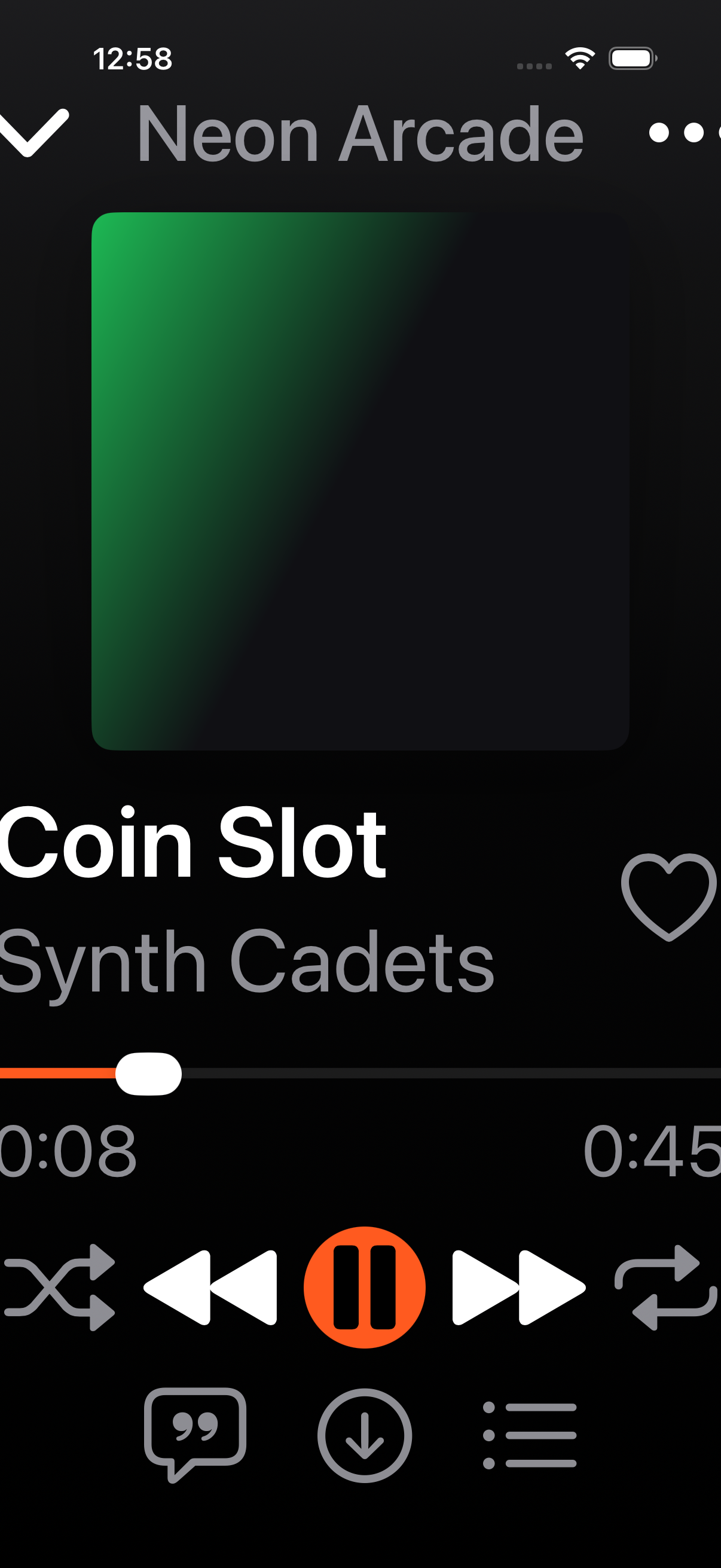
Open an album and start a track. Confirm that the library loads and the track plays before moving to the car display. This separates a server or sign-in problem from a CarPlay connection problem.
Check playback on the iPhone first. This genuine Tunode 1.1.1 simulator screenshot uses fixture music; it is not a CarPlay display.
2. Connect your iPhone to CarPlay
Use your car's supported USB connection or wireless pairing procedure. Apple provides the vehicle-connection steps in its CarPlay setup guide; check your car manual for its USB port or pairing controls.
Open Tunode on the CarPlay home screen. If it is missing, on the parked iPhone go to Settings → General → CarPlay → your car → Customise. Add Tunode if it appears under the available apps, then reconnect if necessary.
3. Choose music on the CarPlay display
Albums: open an album, then select a track to start playback. The album list is grouped alphabetically.
Playlists: select a playlist to play its tracks. Prepare the playlist on your server before the journey.
Downloads: select a completed downloaded track. Prepare and check these files on your iPhone first.
Recently Played: select an album from your server listening history to start it playing. This fourth tab appears when the car supports enough tabs.
Playback opens Now Playing. Tunode's CarPlay implementation includes Queue, shuffle and repeat controls, plus a way back to Now Playing from the browsing lists when a queue exists. The size of lists and the exact presentation depend on the CarPlay display and its limits.
Make browsing and queue choices before driving. If a sign-in, download or connection problem needs the phone, stop somewhere safe before changing it.
Streaming away from home
CarPlay does not make your home server remotely reachable. A local address such as 192.168.1.20 normally stops working when you leave your home network. For streaming, your iPhone needs mobile data and a working remote route, such as a VPN into your home network or a properly secured HTTPS server address.
Before a journey, test the same track with home Wi-Fi disconnected and your intended mobile-data or VPN connection active. A successful test on home Wi-Fi alone does not establish that streaming will work on the road. Check that mobile data is allowed for Tunode in iPhone Settings.
Prepare downloads for patchy reception
Download music in Tunode on the iPhone while connected, let the downloads finish and check the Downloads list. For a journey without dependable coverage, start from CarPlay's Downloads tab rather than relying on browsing a remote album or playlist: those views can still need the server to fetch their contents.
In Tunode 1.1.4, playback prefers a valid downloaded file before a remote stream. The Downloads tab does not require the server library to load. Albums, Playlists and Recently Played still need server access to retrieve their contents.
While parked, test the tracks you need with the server unreachable, including reopening Tunode. Update to the latest available version and repeat the test. See the Tunode offline-listening guide for preparation, storage and playback checks. Older versions had offline-playback defects, so update before preparing your journey.
Troubleshooting Navidrome in CarPlay
Tunode is missing from the car display
Check that CarPlay itself works and Tunode is installed on the connected iPhone. Check the CarPlay Customise list above. If other CarPlay apps are also missing or the phone does not connect, follow Apple's connection guidance before changing your Navidrome settings.
“Not Signed In” or an empty library
Open Tunode on the parked iPhone, confirm the server connection and allow the library to load. Then reopen Tunode in CarPlay. After restarting the iPhone, unlock it once while parked so its saved account data is available. If the phone also cannot load the library, use the connection troubleshooting steps.
It works at home but stops when I leave
Check whether the saved server address is local-only. Test mobile data and your VPN or HTTPS connection on the phone while parked. CarPlay pairing and access to your music server are separate connections.
An album will not open, or a playlist will not start
Both actions can need a live server request even when some tracks have been downloaded. Restore server access, or use the Downloads tab for completed local tracks. If downloaded playback still fails, check the file on your iPhone and update Tunode.
A downloaded track is missing or will not play
Confirm it is completed in the iPhone Downloads screen, not still queued or failed. Test playback on the phone with the server unreachable. If the file fails there too, resolve that first; the CarPlay screen cannot repair the download.
Some of my library is absent from the car's list
CarPlay imposes limits on list items and sections. A shorter list on the dashboard does not necessarily mean music has disappeared from Navidrome. Prepare a manageable playlist before the journey and confirm it appears while parked.
Does CarPlay require a purchase?
No. Tunode's features, including CarPlay, are available in the free app. The app contains advertising. The optional lifetime Remove Ads purchase removes advertising only; it does not unlock music, downloads or CarPlay and is not a subscription.
What we verified
The tab names, playback actions and browsing behaviour above were checked against Tunode's 1.1.4 build 18 release source, including its Recently Played tab and offline-playback corrections. Version 1.1.4 was marked Ready for Distribution in App Store Connect on 27 October 2026. The iPhone screenshot comes from the passing 1.1.1 simulator screenshot tour on iOS 26 with fixture server responses. This guide does not claim a road test, a physical head-unit test or a particular Navidrome server version. CarPlay layout can vary by vehicle.
The older screenshot illustrates the iPhone playback check, rather than documenting the current CarPlay layout. Check your installed version and test your own downloaded tracks before relying on them for a journey.
Need help with a specific setup? Use Tunode support and include your Tunode version, iOS version, car or head-unit model, wired or wireless connection, and whether the same track plays on the phone. Keep passwords and private server credentials out of your message.
Tunode
Your own music library, ready for the journey.
Connect your server and prepare your music on iPhone. Free with ads and an optional lifetime Remove Ads purchase.