Choose the music you want while your server is reachable, wait for the downloads to finish, then check playback without a connection before you leave. Here is the complete preparation and storage workflow.
Published 27 October 20267 minute read
Quick answer: Connect to your Navidrome server, choose Download on a track or download an album or playlist, then wait for the songs to appear under On This iPhone in Downloads. Start playback from that list when offline. Update Tunode and check two downloaded tracks without Wi-Fi or mobile data before travelling.
What you need
Tunode on an iPhone or iPad running iOS or iPadOS 17 or later.
Your own Navidrome or compatible OpenSubsonic server, with music and a working account.
A connection to that server while you download: home Wi-Fi, or your configured secure remote connection.
Enough free device storage for the selected music.
Start with our Navidrome connection guide if you cannot browse and stream your library yet. Tunode is a client for your server; it does not include music or server hosting.
1. Choose the download quality
Open Settings in Tunode and find Download Originals. With this enabled, Tunode requests original files where its player supports the format. Turning it off asks your server for MP3 downloads, which can use less storage. Formats the player cannot decode are also requested through server transcoding.
Transcoding depends on your server configuration. Try one track first if you have not used it before. Changing this setting affects new downloads; remove and download a track again if you want to replace an existing local copy at another quality.
2. Download tracks, albums or playlists
One track: open an album, touch and hold the track, then choose Download.
An album: open the album and choose Download Album. Depending on your iOS version, this appears as a download control in the toolbar or inside the album's more-actions menu.
A playlist: open the playlist and use Download Playlist in its toolbar.
Keep the server reachable while the files transfer. A playlist download saves the tracks currently selected for that download; do not assume songs added to the server playlist later have also been downloaded. Reopen the updated playlist while connected and download its new tracks before travelling.
3. Confirm the downloads have finished
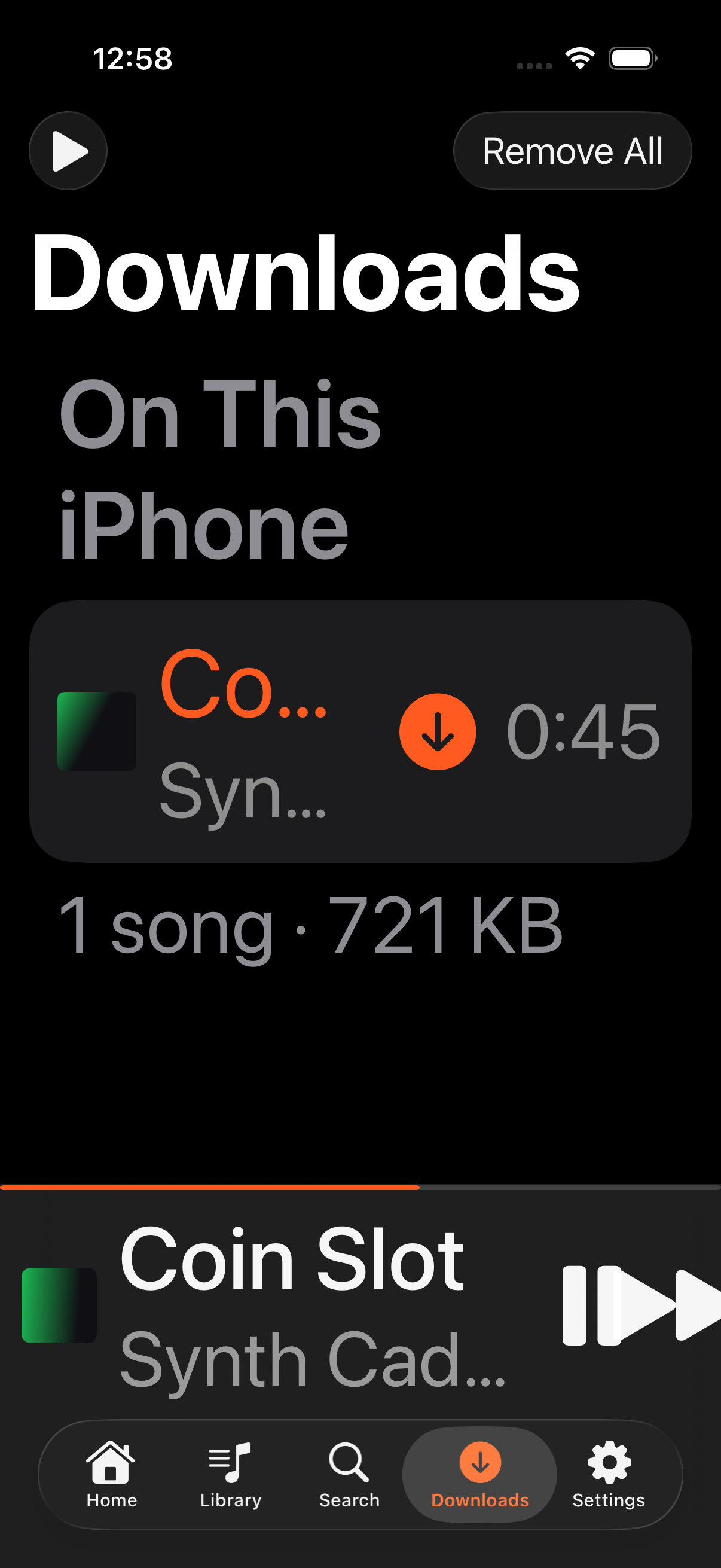
Open the Downloads tab. In Progress contains transfers still running; Interrupted and a Try Again button indicate a transfer that needs attention. The completed list is labelled On This iPhone. Its footer shows a song count and storage use.
Check that all the tracks you intended to take appear in the completed list. A progress indicator, an album visible in the library, or a track you streamed earlier is not the same as a completed download.
The Downloads screen captured from Tunode 1.1.1 build 7 in a simulator, using a test library. This illustrates the controls and completed list; it is not evidence of airplane-mode playback.
4. Test offline playback before travelling
Run this check at home while you still have time to reconnect and fix a problem:
Finish downloading at least two tracks, then stop playback.
Turn on Airplane Mode in iPhone Settings and explicitly turn Wi-Fi off too. Airplane Mode can leave Wi-Fi enabled.
Close Tunode from the app switcher and reopen it. This checks a fresh launch rather than continuing an already-buffered stream.
Open Downloads and start a completed track there. Check that playback progresses and that you can hear it.
Let it advance to another completed track, or select a second track. Check pause and resume as well.
Restore your normal connections after the test.
Use headphones or the iPhone speaker for this first check. A wireless car connection adds another variable. If a completed track will not start, do not rely on Tunode as your only music source for that trip. See the version note and troubleshooting below.
What happens when you reconnect?
Turn Wi-Fi or mobile data back on and restore your usual server connection. Your downloaded files remain on the device until removed; reconnecting does not require you to download every track again. Online browsing and tracks you have not downloaded need access to the server.
If the server only has a private home-network address, mobile data alone will not make it reachable. Rejoin that network or use your configured VPN. Check the Downloads tab for unfinished transfers and use Try Again where shown; do not assume every failed transfer resumed successfully.
Manage storage and remove downloads
Swipe a completed track in Downloads and choose Remove to delete its local copy. To clear the whole downloaded collection, use Remove All and confirm. Settings also shows the downloaded song count and space used.
These controls remove Tunode's local copies, not the source tracks on your Navidrome server. You will need a working server connection to download them again. Treat downloads as listening copies, not a backup of your music collection.
Troubleshooting
The song appears downloaded but will not play offline
Check your Tunode version first. Older version 1.1.1 had a file-path problem affecting playback after a fresh launch without a connection. The 1.1.4 release source includes the correction. Install the latest App Store update and repeat the two-track check above. If it still fails, contact us with your app version, iOS version and whether it fails after reopening the app.
A transfer is interrupted or never reaches the completed list
Confirm you can stream the track while connected, check free storage, then retry from Downloads. If original files work but MP3 downloads fail, review transcoding on your Navidrome server. Keep the phone and server connected until the completed list contains the tracks you need.
Only some songs in an album or playlist work
Check each missing track in Downloads. A bulk request starts transfers; it does not make an incomplete track available offline. Later playlist additions also need downloading. If one completed file repeatedly fails, reconnect, remove that local copy and download it again.
Do offline downloads require a purchase?
No. Tunode's features are available in the free app. It uses advertising, with one optional lifetime Remove Ads purchase. That purchase removes advertising; it does not unlock downloads or other features.
About this guide
This guide was checked against the Tunode 1.1.4 release source on 27 October 2026. The screenshot is from the earlier 1.1.1 simulator tour and illustrates the same Downloads controls. No physical-iPhone airplane-mode test was performed for this article. Run the check above on your device before relying on downloads for a journey.